PDF → EPUB → Kindle
Your PDFs, ready for Kindle.
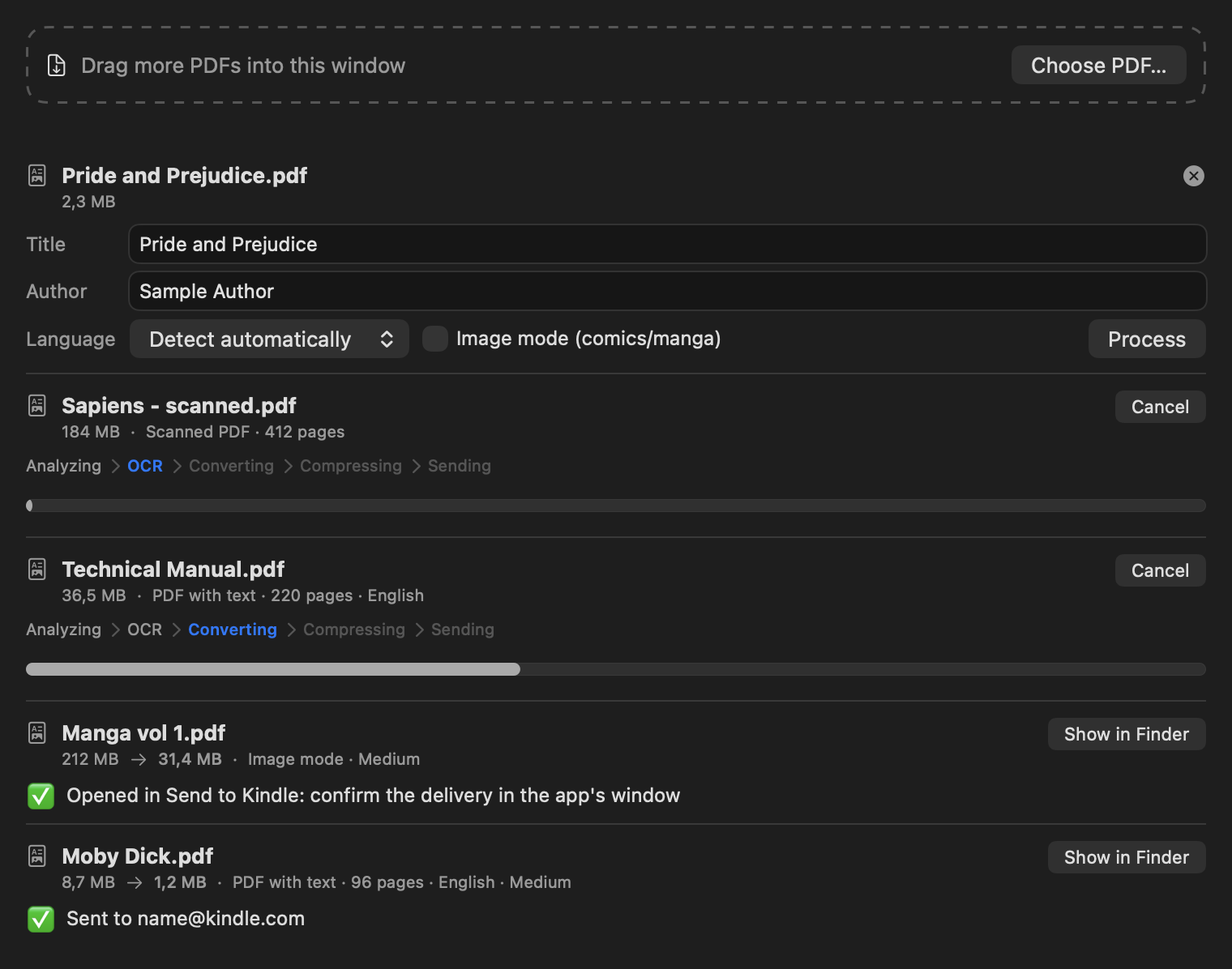
Drag a book into the window. Lumink runs OCR, converts it to EPUB, compresses it and hands it to Amazon's Send to Kindle app, without asking for your password.
v1.1 · macOS 14+ · Apple Silicon & Intel · free
How it works
You drop in the PDF. The rest happens in a queue, one book at a time.
01Analyzing
Finds out whether the PDF has text, is scanned, or mixed.
02OCR
Recognizes the text with ocrmypdf or with macOS Vision.
03Converting
Builds an EPUB 3 that adapts to the Kindle screen.
04Compressing
Recompresses the images so the book downloads fast.
05Sending
Hands it to the Send to Kindle app, or sends it by email.
Features
Made for reading, not for configuring.
Lumink puts in a single window what used to take four tools: OCR, conversion, compression and delivery.
Scanned books
OCR recognizes Portuguese and English text, and the EPUB adapts to the screen like a book bought from the store.
Comics and manga
Image mode builds a fixed-layout EPUB. It turns on by itself when the PDF has almost no text.
Light on your Kindle
Recompresses the images until the book fits. Over email, the app stays under Gmail's limit on its own.
No password in Lumink
Delivery goes through Amazon's official app, with your login there. There's no server: only the EPUB leaves your Mac.
Install
Ready in three steps.
- 1
Download the DMG, open it and drag Lumink to Applications. It isn't notarized by Apple: the first time you open it, go to System Settings → Privacy & Security and click Open Anyway. Or run this in Terminal:
xattr -dr com.apple.quarantine /Applications/Lumink.app
- 2
Install Calibre, which converts PDFs with text. Comics and manga work without it, in Image mode.
Use Homebrew? Install Calibre with it and, if you like, ocrmypdf, which makes OCR faster and more accurate:
brew install --cask calibre
brew install ocrmypdf tesseract-lang
- 3
Install Amazon's Send to Kindle and sign in with your account. Lumink opens the EPUB in it, with no password at all.
Prefer automatic delivery? In Settings (⌘,), turn on email and use a Gmail app password.
- Prefer to build it yourself? Clone the repository and run
./build-app.sh.
FAQ
PDFs on Kindle, demystified.
How do I convert a PDF for Kindle on a Mac?
Drag the PDF into the Lumink window. It analyzes the file, runs OCR if needed, converts it to EPUB, compresses the images and opens the book in the Send to Kindle app, which delivers it to your Kindle.
Why convert a PDF to EPUB instead of sending the PDF?
A PDF has fixed pages: on a Kindle the text ends up tiny and you can't adjust it. An EPUB adapts to the screen, lets you change the font and text size, and reads like a book bought from the store.
Can I send a scanned PDF to Kindle?
Yes. Lumink recognizes the text on scanned pages with OCR, in Portuguese and English, using ocrmypdf or the Vision framework built into macOS, and builds an EPUB with real text.
Does it work with comics and manga?
Yes. Image mode builds a fixed-layout EPUB with one image per page. It turns on by itself when the PDF has almost no text, and it doesn't need Calibre.
Does Lumink ask for my Amazon password?
No. Delivery goes through the official Send to Kindle app, with your login there. Lumink has no server: the PDF is processed on your Mac and only the EPUB leaves it.
Is Lumink free?
Yes, it's free and open source on GitHub. It runs on macOS 14 or later, on Apple Silicon and Intel Macs.